How to Find Google Fonts URL

Learn how to find and copy the Google Fonts URL to use custom fonts in your favicon design. This guide will walk you through the process step by step.

Why Google Fonts? We recommend using Google Fonts because all fonts available on the Google Fonts website are free to use for commercial purposes. This means you can use them in your favicon designs without worrying about licensing issues or additional costs.

Step-by-Step Guide

Step 1: Visit Google Fonts

Go to fonts.google.com in your web browser. This is the official Google Fonts website where you can browse thousands of free fonts.

Step 2: Select a Font

Browse through the font collection and click on the font you want to use. You can search for specific fonts using the search bar at the top of the page.

Step 3: Add Fonts to Your Selection

When you find a font you like, click the "Get font" button located in the top right corner of the page. This adds the font to your selection. You can repeat this process to add multiple fonts - our favicon maker supports loading multiple fonts from a single URL, so feel free to add as many as you need.

Google Fonts Get font button location in top right corner

The "Get font" button is located in the top right corner

Step 4: Access Your Selected Fonts

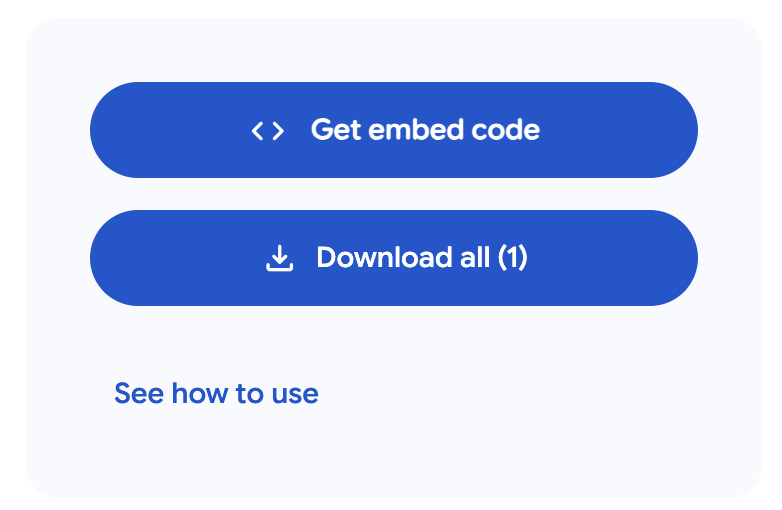
Once you've added all the fonts you want, look for the "View selected families" button in the top right corner. This button displays a badge with the number of fonts you've selected. Click it to open your font collection, then click the "Get embed code" button to view the code snippet.

Google Fonts View selected families button and Get embed code button

Click "View selected families" then "Get embed code"

Google Fonts embed code showing link tags with font URLs

The embed code dialog showing all link tags

Step 5: Extract the Font URL

Google Fonts will display several link tags, including preconnect links and the main stylesheet link. You'll see something like this:

<link rel="preconnect" href="https://fonts.googleapis.com">
<link rel="preconnect" href="https://fonts.gstatic.com" crossorigin>
<link href="https://fonts.googleapis.com/css2?family=Roboto:ital,wght@0,100..900;1,100..900&display=swap" rel="stylesheet">

Find the link tag that contains css2 in its URL - this is the longest one. Copy the entire URL from the href attribute (everything between the quotes). For the above example, the URL is:

https://fonts.googleapis.com/css2?family=Roboto:ital,wght@0,100..900;1,100..900&display=swap

Paste it into the Custom Font input field on our favicon maker. This single URL contains all the fonts you selected.

Tips

  • Always include &display=swap in your URL for better performance
  • Only select the font you actually need to reduce loading time
  • Copy the entire URL, otherwise the favicon creator might fail to load the fonts